
Home Cleverscope | Oscilloscopes Cleverscope CS328 Software Installation for Windows Vista
Cleverscope | Oscilloscopes

Cleverscope CS328 Software Installation for Windows Vista

A step-by-step guide to installing Cleverscope’s CS328 Mixed Signal Oscilloscope software on Windows Vista, including driver setup, system prompts, and post-installation checks..

  • Detail
  • Special Features
  • Specification

The Cleverscope CS328 software can be installed on a Windows Vista system using the setup CD provided with the acquisition unit. Upon running setup.exe, the user must approve any User Account Control (UAC) prompts by clicking Continue.

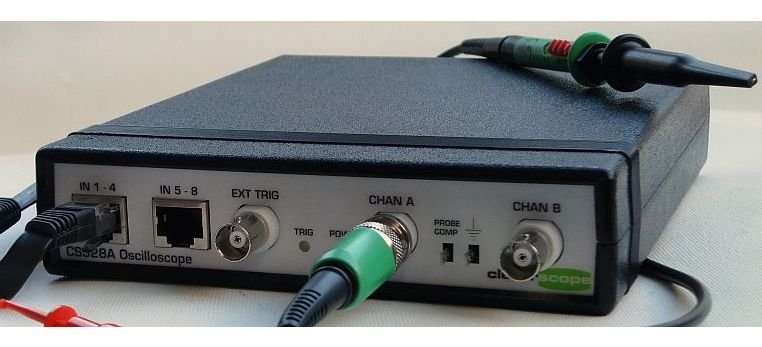
After the software installation completes, users must leave the CD in the drive, connect the Cleverscope acquisition unit via USB, and wait for Vista to detect the device (Cleverscope CS328 MSO). When prompted, users should select "Locate and Install driver software" and allow the system to search the CD for the necessary drivers.

Because the driver may not be digitally signed, Vista will warn the user—clicking “Install this driver software anyway” is necessary to complete the installation. Once successful, the system will confirm the hardware installation.

To launch the software:

  • Navigate to Start > All Programs > Cleverscope > Cleverscope

  • Use the Auto button to begin capturing signals

  • Exit as needed from File > Exit or the window close button

  • For probe setup, refer to page 18 of the CS328 user manual

  • Compatible with Windows Vista OS

  • Simple installation via CD (Setup.exe)

  • Supports USB plug-and-play hardware detection

  • Manual driver installation with system guidance

  • Handles unsigned drivers with user consent

  • Provides easy access to example files and startup configuration

Parameter Details
Operating System Windows Vista
Setup File setup.exe (on supplied CD)
USB Driver Installation Manual; automatic search from CD
Driver Signature Warning Displayed; installation proceeds regardless
Hardware Detection “Cleverscope CS328 MSO” via USB
Required Actions Approve UAC prompts, select "Install anyway"
Post-install Task Click "Auto" to start live capture
File Access Note Remove Read-only flag from copied examples